


User Manual
Import from Google Drive
Using Google Drive is a great way to import files that you share and work on collaboratively online. Choose the Google Drive option in the Add Songs screen to pick files from your Google Drive.
Authorization
Each time you import, Google asks you to choose your Google account and allow OnSong to open the files you pick. OnSong can only open the files you choose. It can’t see anything else in your Google Drive, so there is nothing to sign out of afterward.
Choosing Files
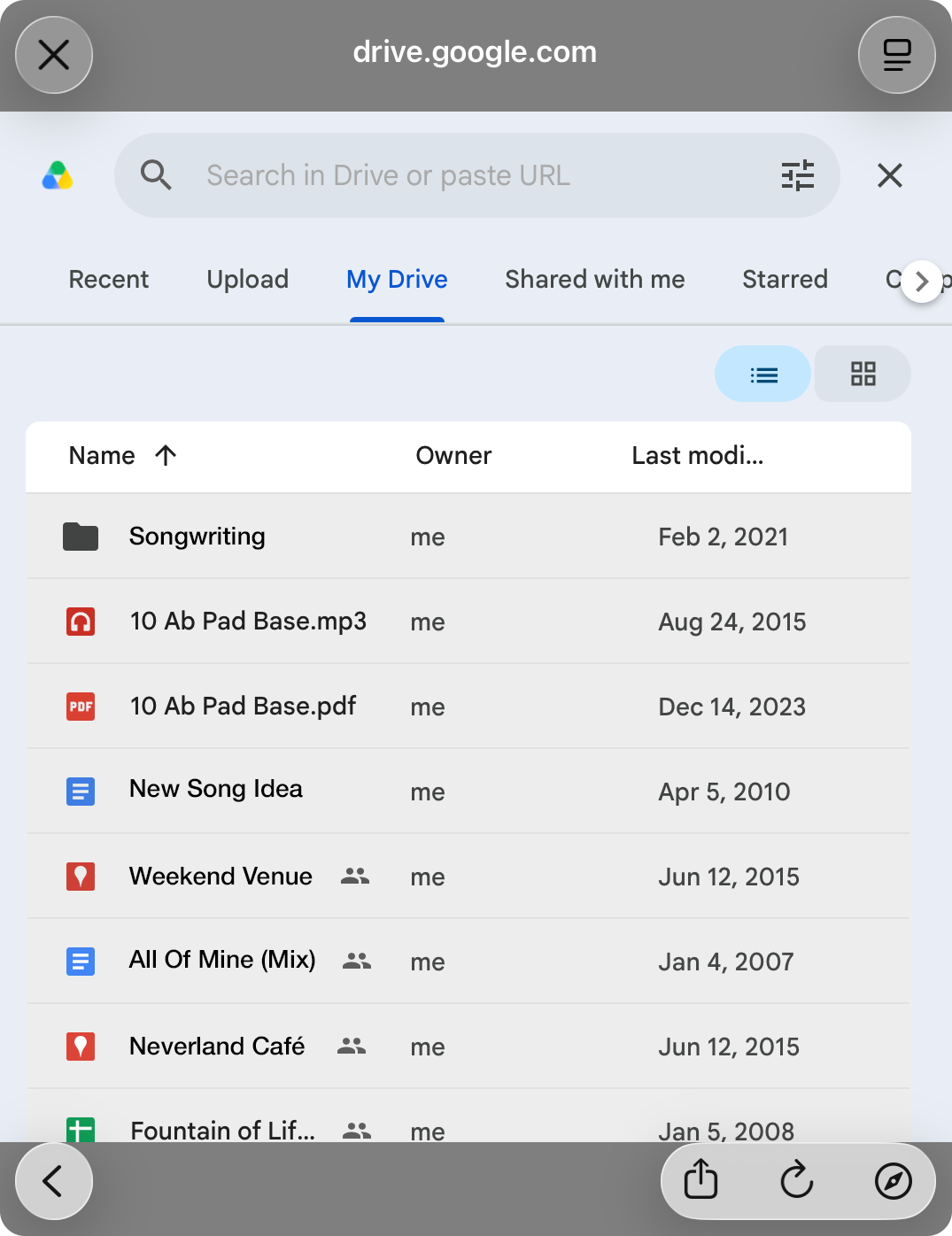
After you sign in, Google’s file picker opens inside OnSong. Browse or search your Google Drive, select one or more files, and confirm your selection.
Importing
The files you chose download and import right away, with the progress shown in the upper right corner. If you choose a file that was already imported, OnSong will have you choose an action to take on the duplicate file. Once the import is finished, you are returned to the All Songs screen.
To import more files later, choose Google Drive again from the Add Songs screen.


