


User Manual
External Video Menu
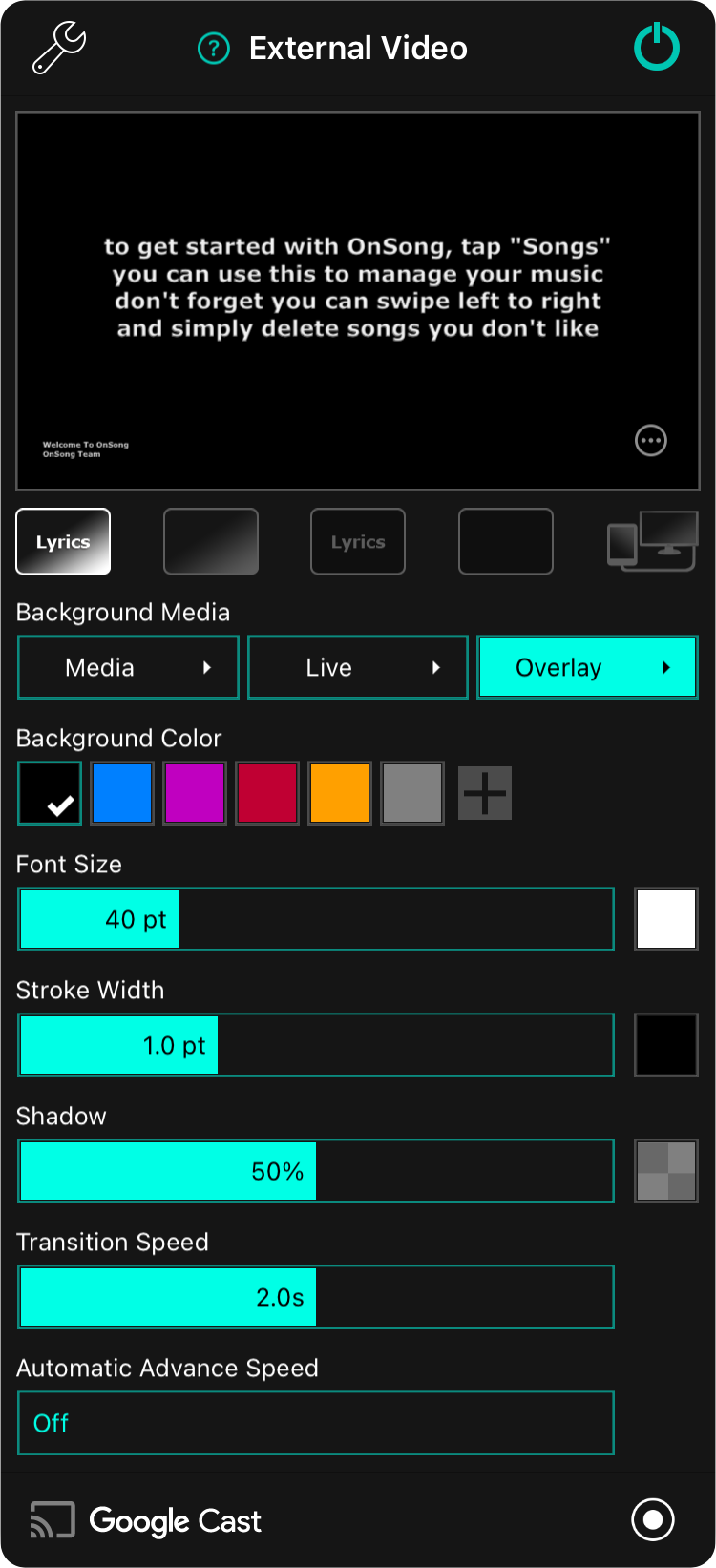
Th' external video menu be used t' configure Lyriken Projekshun, or t' toggle into Stage Monitor in OnSong. Th' menu contains th' followin' options:
Settin's
Tap on th' wrench icon in th' upper-left t' access External Video Settin's directly from th' menu, savvy?
Preview
Th' top portion o' th' menu displays a preview o' what will appear on th' external screen, matey. Ye can tap on th' preview section t' flip through lyric sections t' preview. This does not display th' lyriken on th' external device. Rather, ye will need t' tap on th' lyriken in th' song viewer instead, Arrr!
Display Options
Ye can tap on th' circle with dots icon in th' lower right corner o' th' preview t' display a menu with additional options, me hearty.
Mode Buttons
Five buttons situated below th' preview area be used t' control th' combination o' lyriken and background t' output t' th' external screen. In addition, OnSong can be configured fer stage monitor mode usin' th' fifth button, avast!
- Lyriken and Background displays th' lyriken on a colored background, gradient, image, or video.
- Background Only clears th' lyriken from th' screen but retains th' colored background, gradient, image, or video.
- Lyriken Only will remove th' colored background, gradient, image, and video leavin' only th' lyriken on th' screen.
- Blackout Mode removes th' lyriken and background, displayin' only black.
- Stage Monitor Mode turns on Stage Monitor Mode independently o' lyriken projekshun modes, blimey!
Background Media
Th' background o' lyriken be composited by th' followin' layers that appear on top o' th' background color. Each o' these buttons can be tapped t' toggle th' layer on and off as well as configured, either by tappin' and holdin' on th' button, or by tappin' on th' arrow button t' th' right, savvy?
Media
This button lets ye toggle and choose still or motion graphics behind yer lyriken. Ye can choose different images and videos by configurin' this layer. Configurin' this layer opens th' Media Picker, me hearty.
Live
This lets ye toggle and configure live video which uses camera input with optional special effects t' make ye th' star o' th' show, Arrr! This be great fer engagin' audiences online with live-streamin', trainin' with video conferencin' apps, or fer live video switchin' fer more camera angles on stage. Ye configure th' live video and effects in th' Live Video Configuration Editor.
Overlay
T' improve readability, ye can apply colored textures on top o' th' other background layers. This gives ye another way t' get creative and build engagin' backgrounds, savvy? Ye can configure th' overlay and its color in th' Overlay Picker.
Background Color
In this area ye can pick a background color t' display. Options include black, blue, purple, red, goldenrod, and grey. But ye be not limited t' those preset colors, me scallywag! Ye can also add new colors or customize th' color swatches in this palette usin' th' Color Picker.
Font Size
Th' size o' th' font can be adjusted between 24 and 84 points usin' th' font size slider. Th' default size be 40 points. When th' Adjust Lyriken T' Fit option be enabled in Lyriken Projekshun Settin's, th' font will not be able t' be fully increased as th' font will be limited t' prevent lines from wrappin', avast!
T' th' right be a Color Picker that lets ye choose th' color o' th' text. Th' default color be white.
Stroke Width
Th' stroke be a border around each character in lyriken. Th' font appears in white text with an outline t' separate it from th' background. Adjust th' stroke width from between 0 and 3 points. Default be 1 point, matey.
T' th' right be a Color Picker that lets ye choose th' color o' th' stroke. Th' default color be black.
Shadow
Behind lyriken appears a blurry shadow t' help lift th' text off th' background, me hearty. Th' slider adjusts th' radius o' th' shadow relative th' font size from between 0% and 100%. Th' default be 50%.
T' th' right be a Color Picker that lets ye choose th' color o' th' shadow. Th' default color be 50% opaque black.
Transition Speed
Th' transition speed determines how quickly lyriken and background changes take place, savvy? Th' speed o' th' transition be set in seconds between 0 and 4 seconds. Th' default be 2.0 seconds. Overly fast transitions may experience a delay in outputted t' th' external screen, especially on older or wireless hardware, Arrr!
Automatic Advance Speed
Th' automatic advance speed be used t' cycle through th' sliders in a song after a delay. By default, automatic advance be turned off. Th' time t' show each slide can be set between 1 and 60 seconds.
Google Cast
On th' bottom-right corner be a button that allows ye t' connect t' one or more Google Cast devices fer wireless lyriken projekshun. Tap on this button t' connect or disconnect t' Google Cast devices on yer network in th' Google Cast Picker, me scallywag!
Broadcast
On th' bottom-left corner be a button that enables broadcast. This will send th' video o' th' external video screen t' a compatible app fer live-streamin' such as Facebook, Zoom, or record t' yer photo library.
On iOS and iPadOS devices, th' lyriken projekshun modes be always enabled where th' stage monitor mode can be toggled on and off. Stage monitor mode will always be output on physically wired video devices via HDMI or VGA, or wirelessly usin' an AppleTV. This allows lyriken projekshun settin's t' continue t' be modified fer other wireless devices such as Google Cast. On macOS devices, both lyriken projekshun modes and th' stage monitor mode can be toggled on and off and separate windows will be shown or hidden accordingly. These windows can be made full screen on certain outputs, blimey!


