


Manual del Usuario
Documento

La pestaña de documento te permite cambiar la configuración del documento para cada canción, como el modo de luz baja, el color de tinte, la fuente, el tamaño del papel y los márgenes.
Cuando estés viendo un archivo importado como un PDF que se puede teñir, esta pestaña muestra solo Modo de Tinte.
Configuración
Puedes tocar el icono de llave inglesa en la esquina superior izquierda para cambiar la configuración global del sistema sobre cómo se comporta este menú. Esto no afecta al formato por canción.
Modo de Tinte
El modo determina los colores utilizados para dibujar la canción en la pantalla y se puede utilizar para ayudar a hacer la pantalla más visible en diferentes entornos o para usuarios con trastornos de estrés visual. Los modos cambian en consecuencia para Modo de Luz Baja. Si no se selecciona ninguna opción, OnSong mostrará la canción utilizando la configuración predeterminada. Las opciones incluyen:
- Papel muestra la canción en blanco y negro de alto contraste.
- Atenuado se muestra similar al papel, pero con menor contraste.
- Sepia se muestra similar a atenuado, pero con tonos de color cálido.
- Cielo muestra la canción superponiendo un tinte azul para ayudar con trastornos de estrés visual.
Modo de Luz Baja
A la derecha de los botones de modo hay un icono que puedes usar para activar o desactivar el modo de luz baja. Esto se establece en todo el sistema cuando se activa y notarás que también aplica esos cambios al modo que hemos seleccionado. Esto afecta todas las canciones y menús en OnSong.
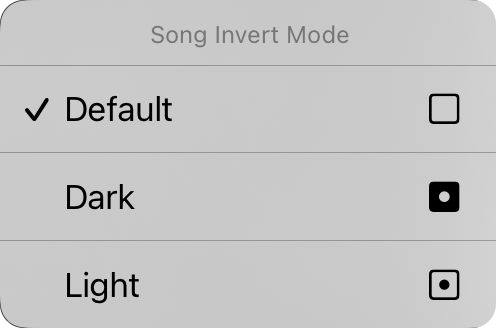
También puedes tocar y mantener presionado el botón de luz baja para mostrar el menú contextual Modo de Inversión de Canción. Desde aquí puedes cambiar el modo de luz baja para el documento específico. Está configurado en "predeterminado" de forma predeterminada, lo que significa que el documento de la canción participará en el modo de luz baja a medida que cambia en el sistema. Puedes forzar que el documento de la canción se vea en modo oscuro o claro aquí, independientemente del modo de luz baja establecido para la aplicación.
Familia de Fuentes
Cinco botones en la parte superior del menú te permiten elegir la fuente de toda la canción. Puedes elegir entre:
- Sin Serif es una fuente como Helvetica que es perfecta para mostrar acordes gráficos. Predeterminada.
- Serif es una fuente como Georgia que puede ser más fácil de leer para algunos usuarios.
- Manuscrita es una fuente como Marker que es muy estrecha, permitiendo que más contenido quepa en la página.
- Monoespaciada es una fuente de ancho fijo como Courier que es útil en algunos casos para alinear acordes.
- Personalizada abre la lista de Fuente Personalizada donde puedes explorar fuentes instaladas en tu dispositivo y elegir una. Las cuatro fuentes anteriores no se repiten en esta lista. Elige Predeterminada para borrar la fuente personalizada. Cada vez que selecciones esta opción, la pantalla de Fuente Personalizada reaparecerá para la selección.
Espaciado de Líneas
Cuando quieras que quepa más en la pantalla, considera reducir el espaciado de líneas, o el espacio entre líneas. También puedes aumentar el espaciado de líneas para más espacio entre líneas para mejor visibilidad. Puedes tocar los iconos a la izquierda y derecha de todos los controles deslizantes para ajustar finamente cada valor. Se ajusta entre 0,7 y 1,3 líneas. El predeterminado es 1,0.
Si la canción tiene dibujos, puedes tocar y mantener presionado Espaciado de Líneas para abrir Alineación de Dibujo. Elige Alinear Dibujo al Espaciado de Línea Heredado o Alinear Dibujo al Espaciado de Línea Actual para alinear el dibujo nuevamente con la letra.
Papel
Esto te permite establecer el tamaño de la página virtual que afecta el tamaño de las fuentes que seleccionas. Por ejemplo, los tamaños de papel más grandes mostrarán las fuentes en un tamaño más pequeño. Los tamaños incluyen Carta, Folio, Legal, Tabloide, A5, A4, A3 y A2. Los iconos a la derecha te permiten elegir entre orientación vertical y horizontal.
Diseño
La sección de diseño te permite definir cómo se genera cada página del documento cuando utilizas el Motor de Renderizado R2. Elegir saltos de página o dos columnas activa el Motor de Renderizado R2 para la canción si aún no está activado. Esto tiene tres controles:
Paginación
Esto te permite elegir si hacer fluir el gráfico hacia abajo en la página con una hoja de desplazamiento continuo, o dividir la página en hojas virtuales de papel.
Columnas
Este control te permite elegir entre una y dos columnas. Cuando se habilitan dos columnas, las secciones de tu canción fluyen a la otra mitad de la hoja.
Margen Interior
Este es el ancho del margen interior, el espacio entre las columnas. Las opciones incluyen 0" a 1" en incrementos de 1/16".
Márgenes
Los márgenes te permiten añadir una inserción en los bordes del papel virtual en la pantalla. Esto es útil para hacer que el texto sea visible y proporcionar espacio para Esquinas Activas o Zonas de Navegación cuando también se usa la selección de sección. El icono en el lado derecho muestra cuándo se cambia el margen: izquierdo, derecho, superior o inferior.
Pie de Página
Esto te permite establecer el tamaño del pie como un porcentaje del tamaño de fuente de la letra. También puedes usar el botón de la derecha para activar o desactivar el pie de página.
Todos los controles en esta pestaña excepto el modo de luz baja se aplican a la canción seleccionada. Veremos cómo aplicar nuestros cambios a diferentes canciones en nuestra biblioteca en un momento.
Si la canción tiene dibujos, el primer cambio que hagas en su diseño muestra un mensaje La Canción Tiene Dibujos, porque los dibujos permanecen donde se hicieron mientras que la letra puede moverse. Toca Mantener Cambios para continuar, o Deshacer Cambios para volver el diseño a su estado anterior.
Puedes cambiar los valores predeterminados de cada aspecto del documento tocando el icono de llave inglesa en la esquina superior izquierda para acceder a las opciones de Documento de Preferencias de Estilo.


